# Person Attendance

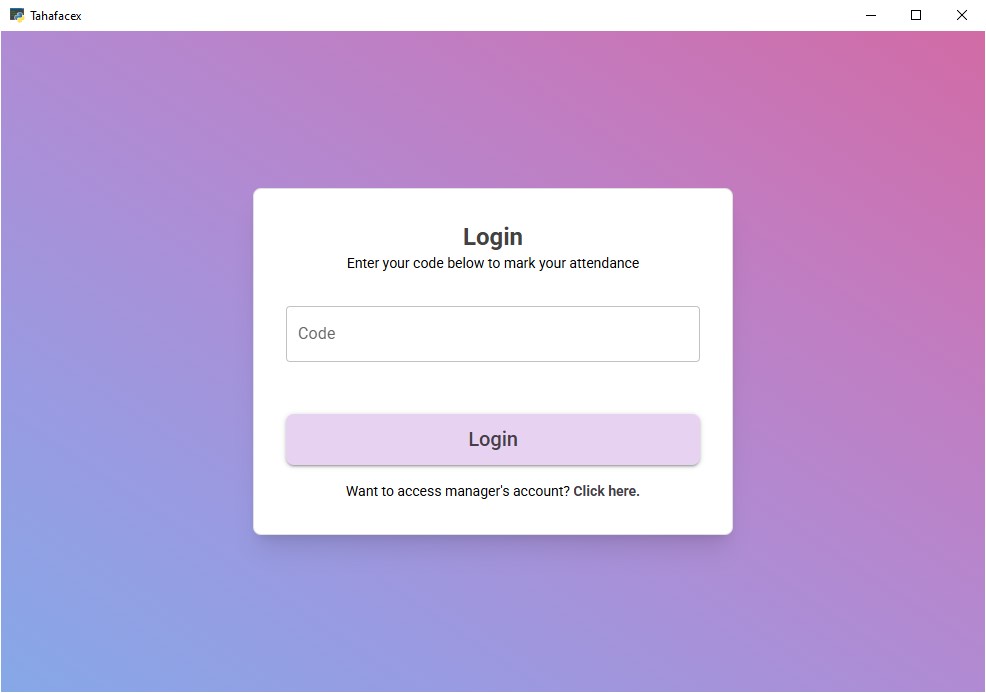
<figure><img src="https://3731693287-files.gitbook.io/~/files/v0/b/gitbook-x-prod.appspot.com/o/spaces%2FUsIFCnMFYp4DTZzPoUWW%2Fuploads%2F8ZVHeNzL6lsAfanLw2lP%2FScreenshot%202025-02-14%20122940.jpg?alt=media&#x26;token=32f13a94-556d-42ca-8e14-363949824ea5" alt="Login page where input code to login for marking your attendance"><figcaption><p>Login for attendance</p></figcaption></figure>

Login by entering the code to which the person has been assigned. To mark there attendance

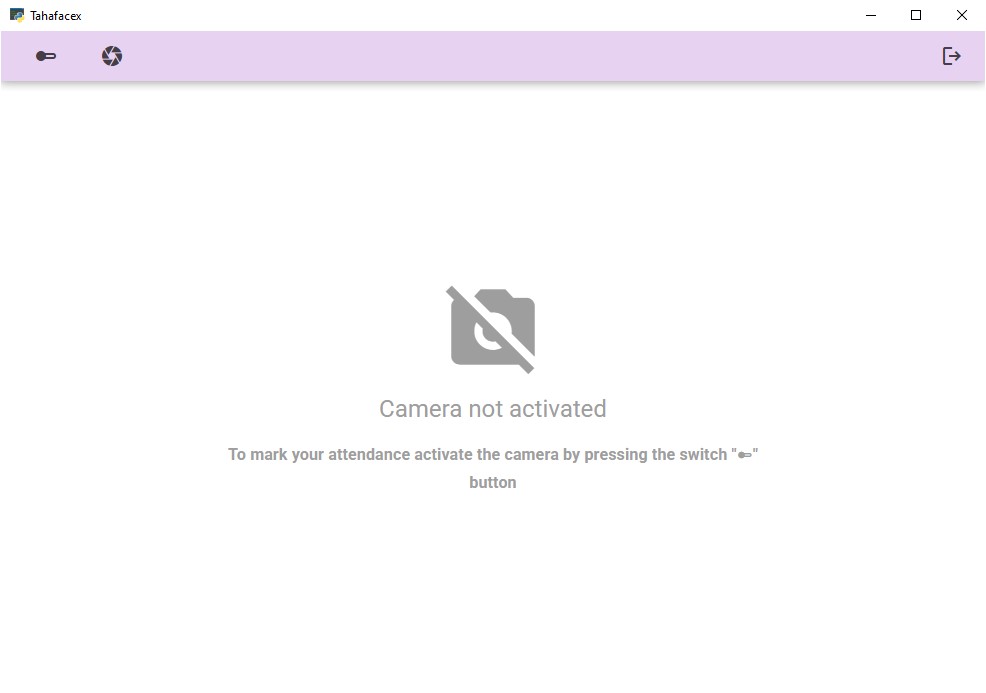
<figure><img src="https://3731693287-files.gitbook.io/~/files/v0/b/gitbook-x-prod.appspot.com/o/spaces%2FUsIFCnMFYp4DTZzPoUWW%2Fuploads%2FepBGz95sKdnE81GrMdyo%2FScreenshot%202025-02-14%20123000.jpg?alt=media&#x26;token=e09b7cd6-b796-405d-a5d8-18b235ec59b9" alt="Attendance page for person to mark there attendance"><figcaption><p>Attendance page</p></figcaption></figure>

Click on the switch button to activate the camera remember to have a well lit room. Then capture the image it will ask to confirm your identity by showing the person's name it detected in the image.

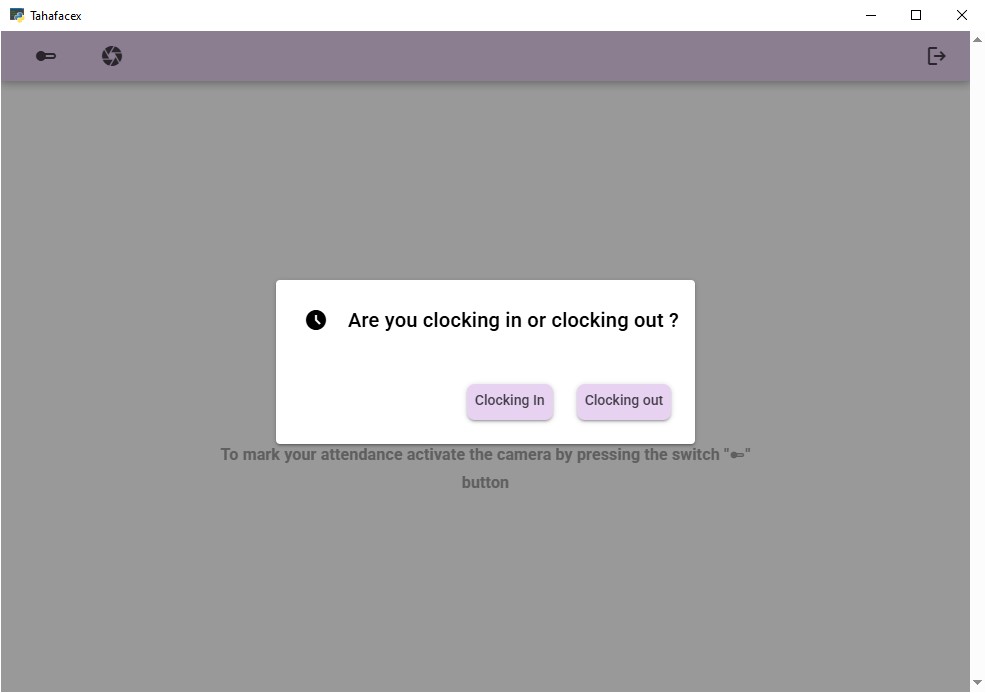
<figure><img src="https://3731693287-files.gitbook.io/~/files/v0/b/gitbook-x-prod.appspot.com/o/spaces%2FUsIFCnMFYp4DTZzPoUWW%2Fuploads%2F8su4im0ywOHoDFuXYVVg%2FScreenshot%202025-02-16%20200435.jpg?alt=media&#x26;token=45c03b11-a552-47d5-b201-7c7b6ca5631a" alt="Attendance with flexible type of attendance"><figcaption><p>Attendance with flexible option selected</p></figcaption></figure>

If you have selected Clock In Out (Flexible) type of attendance the system will ask the person if they are clocking in or out.